kaya editor · local review surface
Stop reviewing plans in a terminal.
An agent writes a plan, a spec, a report. Kaya serves that file as a page you can actually look at, lets you attach notes to specific parts of it, and hands those notes back to the agent as structured feedback. Everything runs on your machine - no account, no upload, no third-party host.
Why I built it instead of using something else → read the full newsletter post.
Requires Node 22 or newer. Zero runtime dependencies.
step 1 of 8
Install
One global install. It gives you the kaya command.
npm i -g kaya-editor
Check it landed:
kaya --help
step 2 of 8
Open a review
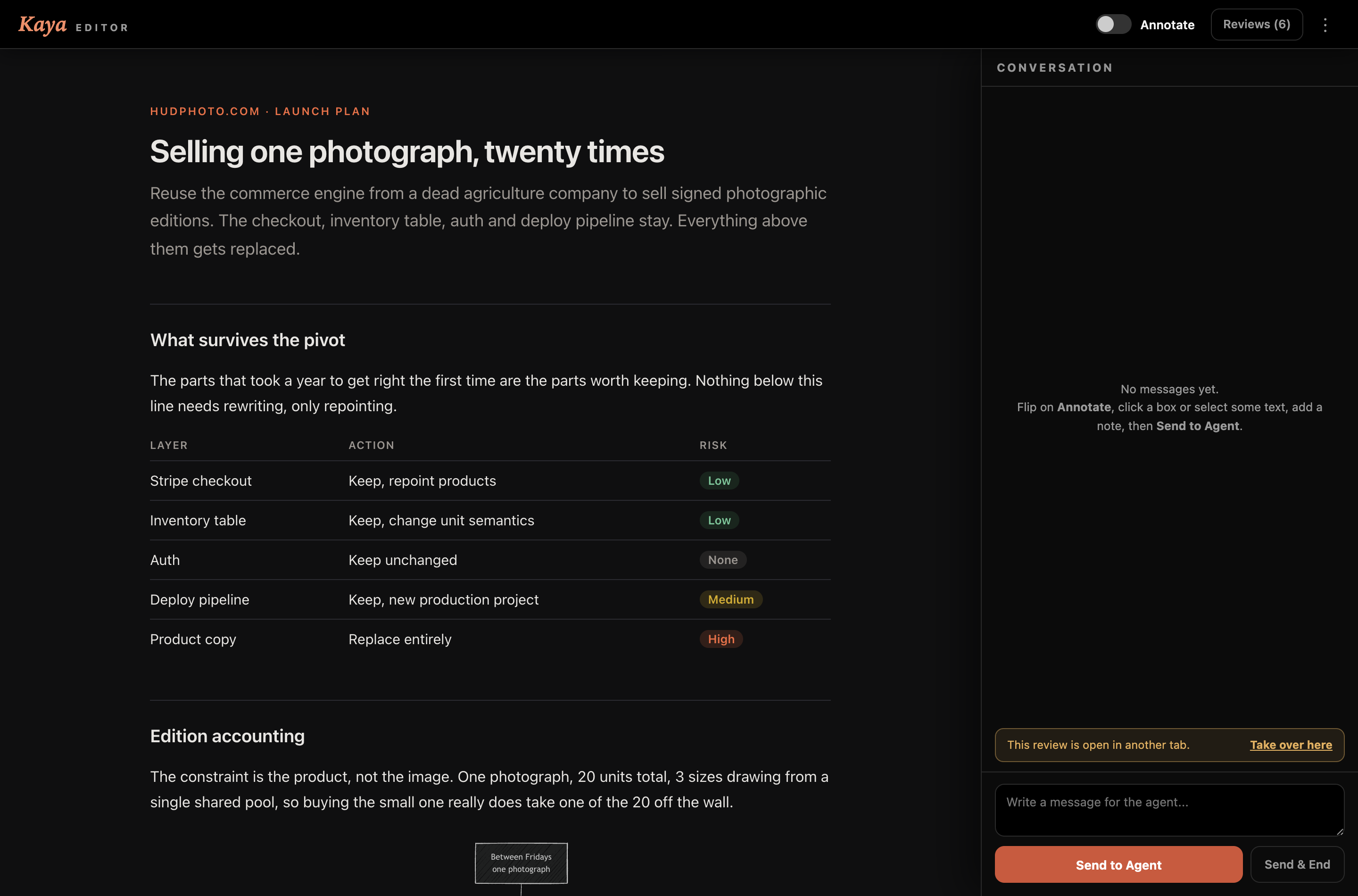
Point it at any HTML or Markdown file. It prints a local URL and opens your browser.
kaya plan.html

Kaya serving /path/to/plan.html at http://127.0.0.1:57749/
step 3 of 8
Know what you get styled, and what you don't
This catches people out on their first HTML artifact.
- Markdown is rendered by Kaya to a dark themed page. Typography, tables, code blocks and spacing come free. Your source file is never modified, so anything that parses the raw Markdown keeps working.
- HTML is served exactly as authored. Kaya themes its own chrome, not your document. An HTML file with no CSS renders as unstyled browser default: Times serif, borderless tables, text running edge to edge.
If you are asking an agent for an HTML artifact, tell it to include a <style> block. If you do not care about styling, ask for Markdown and let Kaya theme it.
step 4 of 8
Annotate
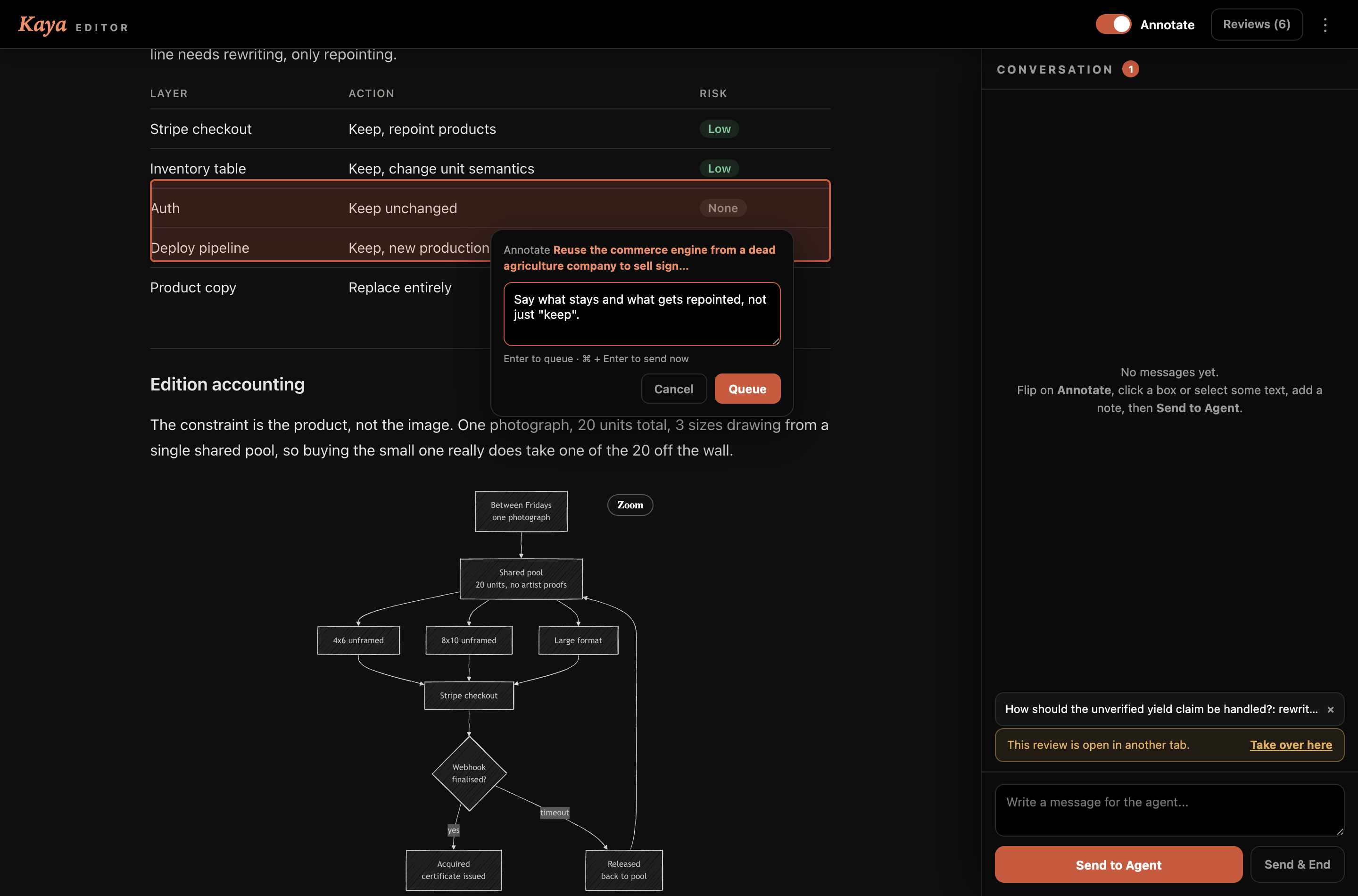
Flip Annotate on in the top bar. Then either click an element - a heading, a paragraph, a table row, a diagram node - or select text inside a paragraph to comment on that phrase specifically.
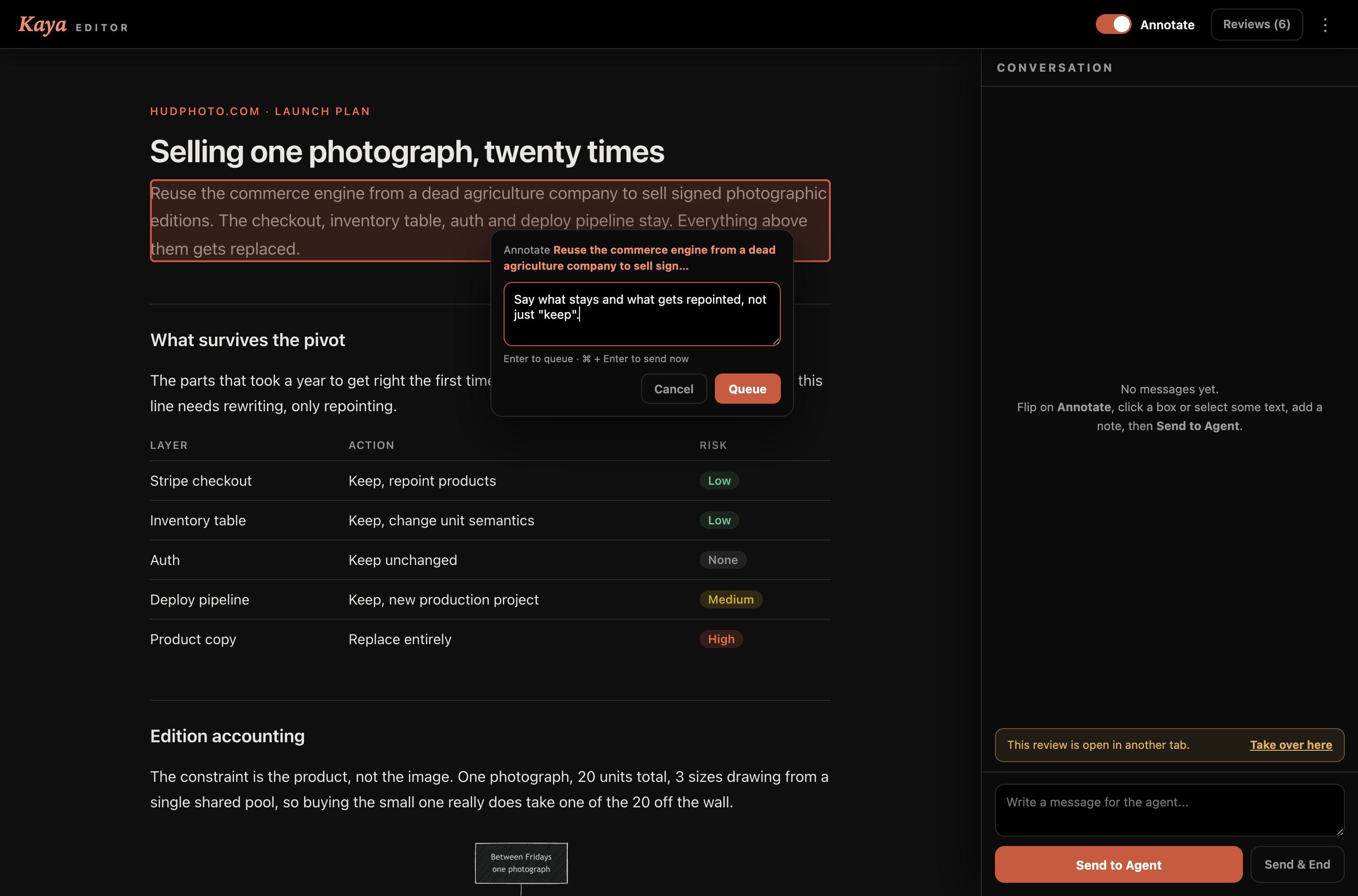
Press Queue to stage it. Keyboard: Enter queues, ⌘ + Enter sends the whole batch immediately.
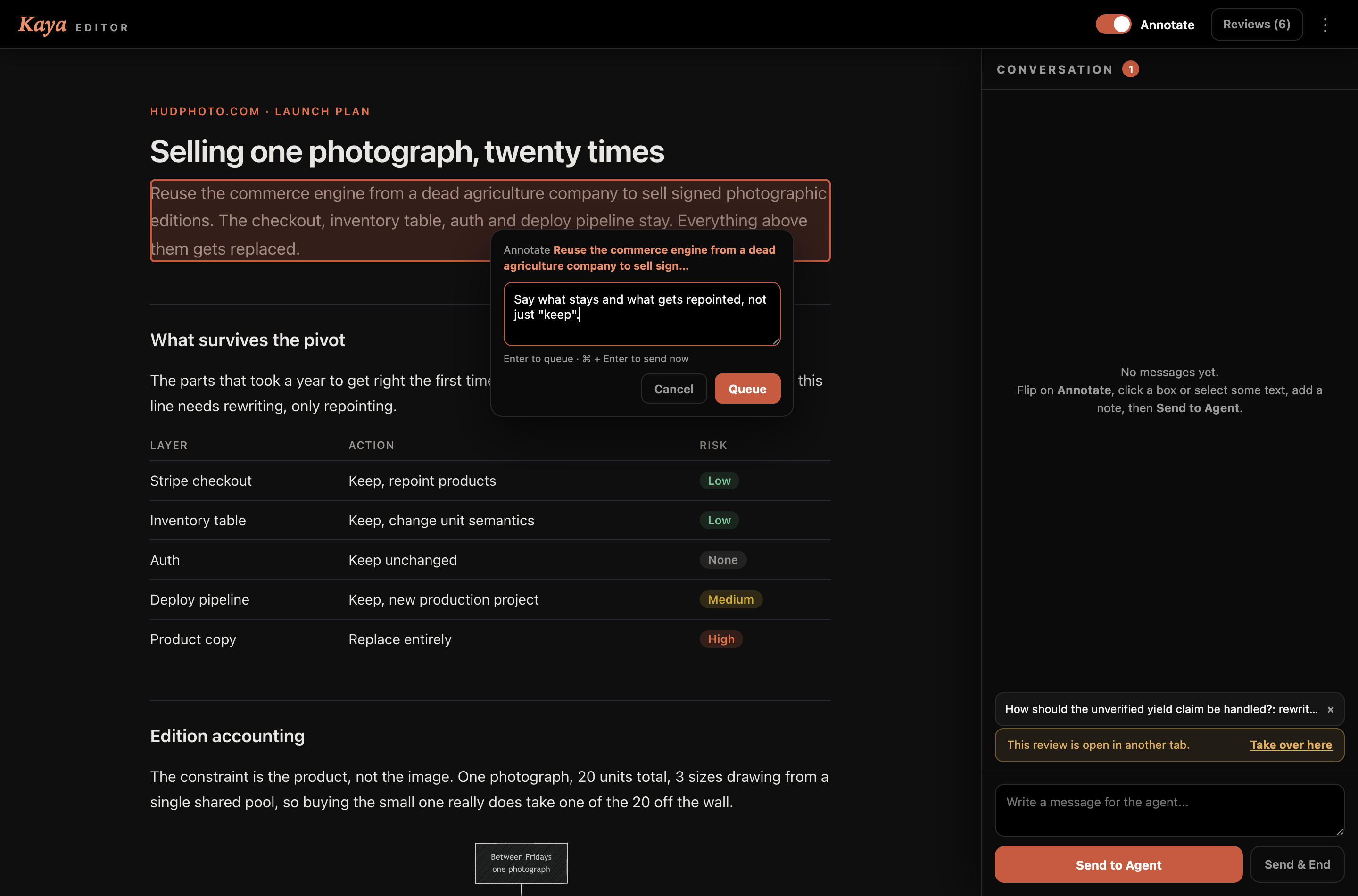
Queued notes survive a reload. They are staged in session storage and restored automatically, so a refresh or an accidental back-button does not destroy what you typed. Staging clears only after a send succeeds.
step 5 of 8
Send, and run the loop
Send to Agent delivers the batch and keeps the review open. Send & End delivers it and closes the review.
On the agent side, this is the blocking half. It waits until you send something:
kaya poll plan.html --agent-reply "Rewrote the risk table, dropped the unverified claim."
The reply text appears in the Conversation panel, so you see what changed before you read the revision. Each agent reply is badged with its round number and the thread persists across rounds. When the agent rewrites the file, the open tab live-reloads in place - you do not reopen anything.
step 6 of 8
Ask the reviewer a typed question
Rather than asking a question in prose and parsing the answer, an artifact can declare a control and Kaya renders it:
<div data-kaya-ask="copy"
     data-kaya-label="How should the unverified claim be handled?"
     data-kaya-options="delete it|rewrite as edition note|leave and flag"></div>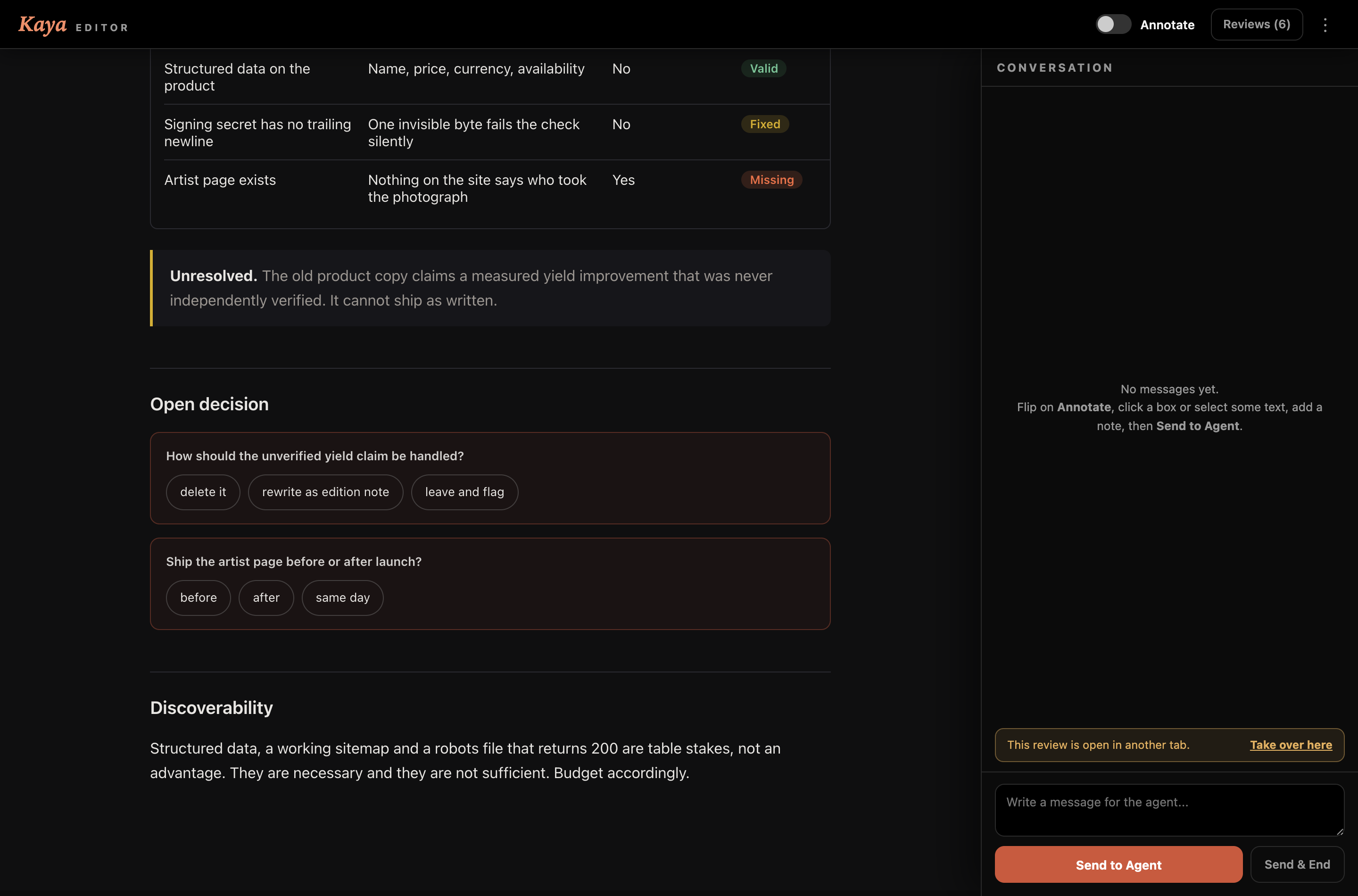
step 7 of 8
Diagrams, zoom and layout checks
Put Mermaid in a fenced mermaid block (Markdown) or <pre class="mermaid"> (HTML). Kaya renders it dark themed and hand drawn.
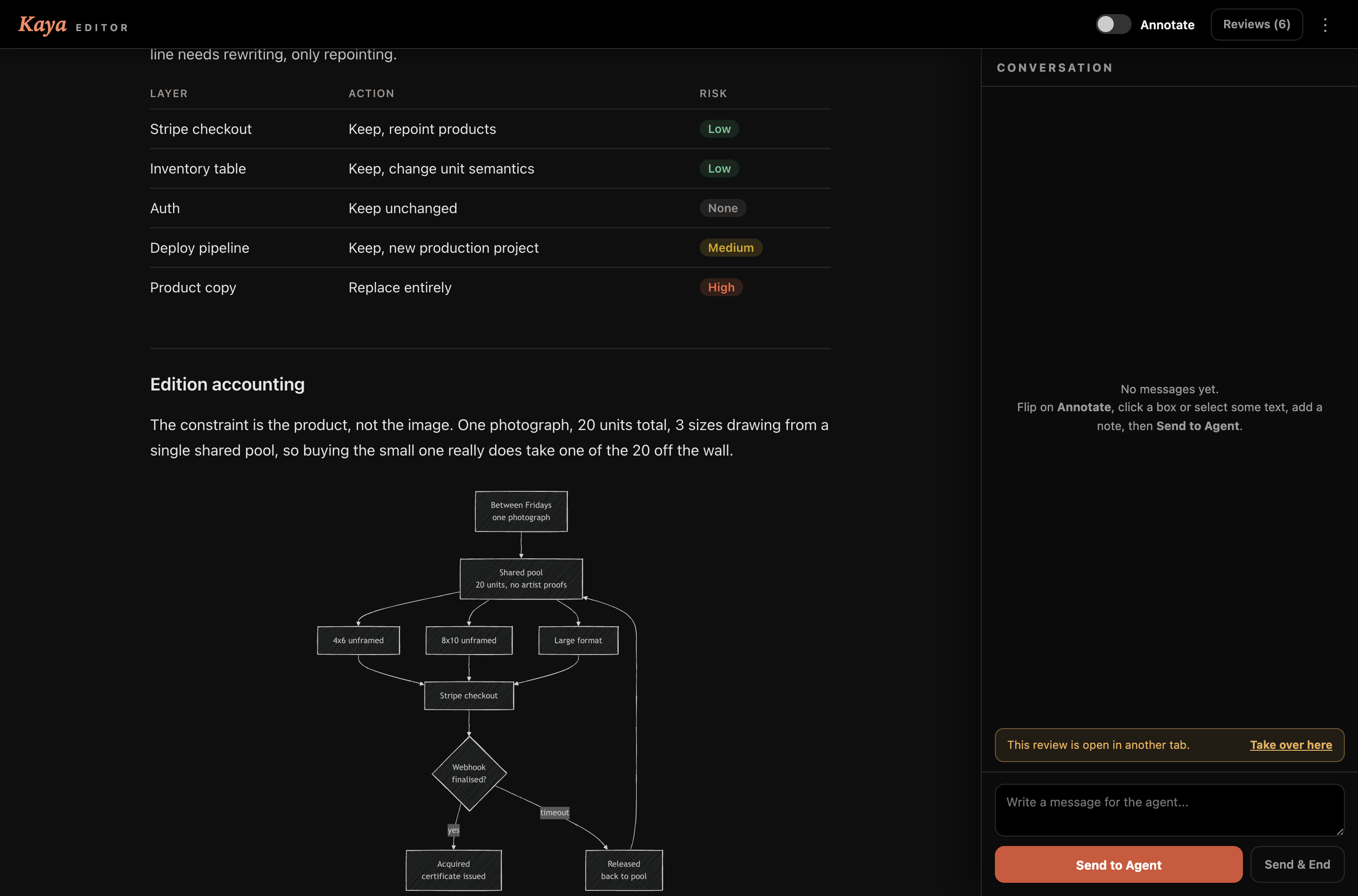
Hover any diagram, image or SVG for a zoom control. Wheel to zoom, drag to pan. With Annotate on, clicking a node inside the zoom comments on that node, not the whole diagram. Zoom is a hover affordance rather than a click, deliberately, so it never competes with annotating.
The top bar carries a live count of layout problems and flags when the page scrolls sideways. Containers that scroll on purpose - a wide table you wrapped in overflow-x: auto - are not flagged. It reports real breakage, not intentional design.
step 8 of 8
Export, end, reopen
Export a standalone copy from the ⋮ menu, or from the terminal:
kaya export plan.html --out plan-standalone.html
Local assets are inlined - CSS, fonts, local scripts, and the vendored Mermaid runtime - so the result opens with no Kaya server running and no sibling files. Remote CDN references stay as links, so those still need network.
Ending and stopping:
kaya end plan.html     # end it as the agent
kaya stop plan.html    # stop that one server
kaya stop              # stop all of them
kaya list              # show active sessions
One asymmetry worth knowing: if you end a review from the browser, a plain kaya <file> refuses to reopen it and says why. An agent cannot wander back into a review you closed - it has to be asked.
kaya plan.html --reopen
An agent ending its own turn does not lock you out.
Command reference
| Command | What it does |
|---|---|
| kaya <file> | Open or resume a review |
| kaya <file> --reopen | Reopen a review you ended |
| kaya poll <file> [--agent-reply "..."] | Block until feedback or end |
| kaya export <file> [--out <path>] | Write a standalone HTML copy |
| kaya end <file> | End the review as the agent |
| kaya list | Show active sessions |
| kaya stop [file] | Stop one server, or all |
Kaya serves your file through a local server rooted at that file's own directory. Put images, CSS and fonts next to the artifact and reference them with relative paths, never a leading slash.
The store this was used to build is at hudphoto.com. The reasoning behind the whole rebuild, and what happened when I asked five AI models to find it, is in the newsletter.